
Audiplex MX
Whole-class listening exams

One test. Clear audio for the whole class.
Send the computer’s listening-test audio to dedicated 2.4 GHz receivers. Give each student their own wired headphones and volume control.


SCHOOLS & CLASSROOMS
Choose wireless microphones for classroom teaching, classroom headphones and compatible personal listening devices. Match the audio source, receivers and charging plan to your lesson.
Compare solutions →FOUR WAYS TO SUPPORT LEARNING
Start with the audio source and the devices your students will use.
Audiplex MX
Whole-class listening exams
Send the computer’s listening-test audio to dedicated 2.4 GHz receivers. Give each student their own wired headphones and volume control.

AuraPlex Pro M3
School-managed listening

Connect classroom audio to AirCast, then lend AuraClip receivers to the students who need them. Collect, clean and recharge after class.

Aura C
Personal classroom listening

Aura C receives an existing Auracast broadcast through a compatible phone and app. Check the student’s hearing device and audio delay before class.
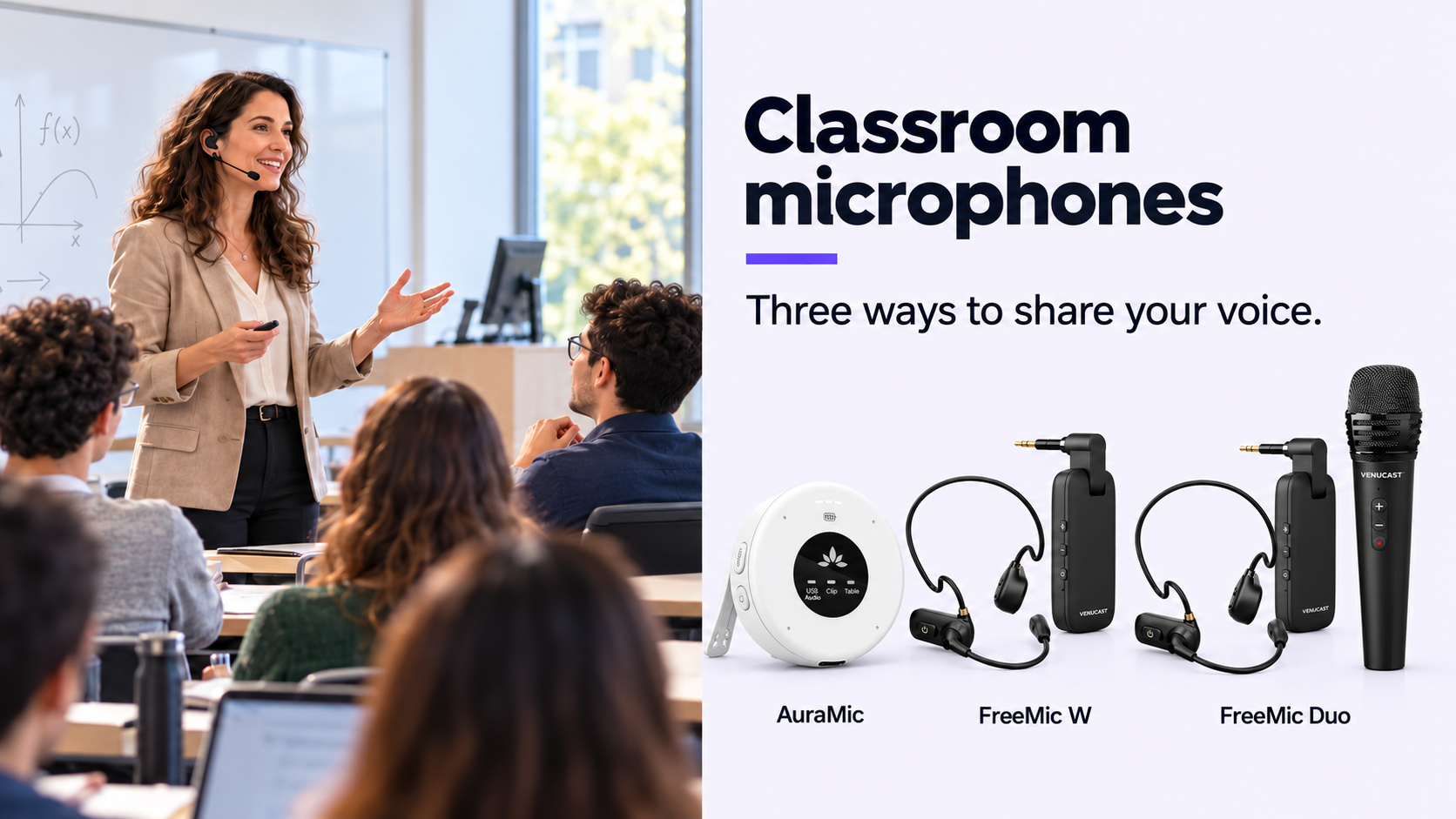
Classroom microphones
Three ways to share your voice
Choose direct Auracast speech with AuraMic, or feed a FreeMic W or FreeMic Duo receiver into a compatible classroom audio input.
FIND YOUR CLASSROOM SETUP
Compare headphones connected to dedicated receivers, school-owned Auracast receivers and a verified phone-based listening route.
Dedicated 2.4 GHz · managed receivers
Play the same exam audio to dedicated receivers. Students connect wired headphones, without relying on phones or school Wi-Fi.
Audiplex MX
1 transmitter + 10 receivers + charging dock. Select wired headphones separately.
Auracast · devices on loan
Connect the classroom audio source to AirCast and lend AuraClip receivers with suitable wired earphones to the students who need them.
AuraPlex Pro M3
AirCast + 3 AuraClip receivers + charging dock. Plan earphones and spares separately.
Auracast via a compatible phone
Use Aura C with a supported phone and app to send classroom audio to compatible personal Bluetooth hearing devices. Test added delay first.
Aura C
One Aura C per phone. A separate Auracast broadcast is required.
For timed exams, validate the source, receiver count, charging and school device rules before deployment. For hearing support, test the exact listening device with the student.
04 · ADD THE TEACHER’S VOICE
Choose the microphone by how students will listen: through a compatible classroom sound system or verified Auracast devices.
Direct Auracast voice
Share a teacher or small-group speaker through a portable microphone that broadcasts directly to verified compatible Auracast listening devices.

AuraMic
Built-in microphone · clip and table modes. Confirm listener compatibility.
Hands-free teaching
Keep both hands free while teaching. Connect the wireless receiver to a compatible speaker, mixer or Venucast transmitter audio input.

FreeMic W
Headset + analog receiver. Supported 3.5 mm or 6.35 mm input required.
Headset + handheld flexibility
Use a headset for teaching or a handheld microphone for classroom contributions. Feed the receiver into your compatible audio system.

FreeMic Duo
Headset + handheld + analog receiver. Confirm input connection and level.
FreeMic W and FreeMic Duo do not broadcast Auracast themselves. Their receivers connect to a supported audio input; an Auracast transmitter is needed for an Auracast listening route.
EXPAND YOUR SETUP
Compatible additions for the systems above. Choose devices that match your setup.

Classroom headphones with a 3.5 mm wired connection for compatible Audiplex and AuraClip receivers
€159,99


REAL-WORLD DEPLOYMENTS
Explore locations using Venucast products across North America. View location details on HearFinder.
Explore Locations ↗ Explore on HearFinder ↗
Venucast locations across North America · HearFinder
VOICE OF VENUES
Explore church, conference and museum experiences. These are venue examples, not school classroom case studies.

Church
Menlo Park, California, United States
“The member using new hearing aids was ‘extremely happy.’”Read the venue story →

Conference
Amberg, Bavaria, Germany
“The low latency is especially important for people with hearing loss and makes the system ideal for live broadcasts.”Read the venue story →
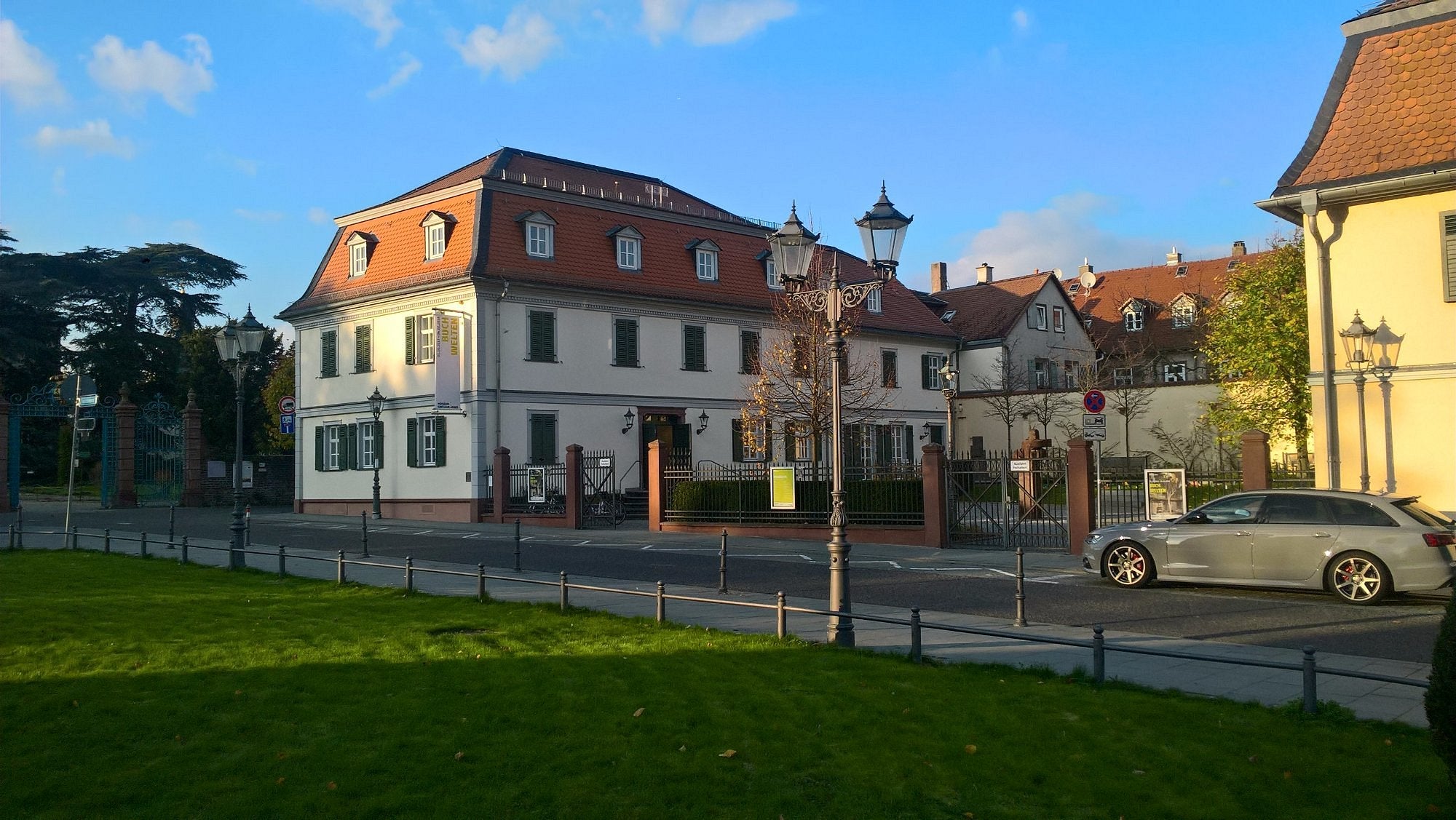
Museum
Bad Homburg, Germany
Successfully configured headphone groups for exhibition audio.
Read the venue story →PLAN YOUR CLASSROOM
Practical details for teachers, school IT and accessibility teams.
Choose Audiplex MX for managed whole-class listening such as language tests. Choose AuraPlex Pro M3 for a small pool of school-owned receivers. Choose Aura C for a verified phone-based listening route. For live teacher speech, add a microphone matched to the selected system.
No. Audiplex MX uses dedicated 2.4 GHz receivers and does not send audio directly to Auracast hearing aids. AuraPlex Pro M3 uses AirCast to broadcast Auracast to compatible receivers or verified Auracast listening devices. Match receivers to their system.
Choose wired headphones with a connection supported by the selected receiver. The 10-Pack Wired On-Ear Headphones uses a 3.5 mm jack; it does not receive a wireless broadcast on its own. An Audiplex MX kit contains ten receivers, with headphones selected separately. For twenty students, plan twenty compatible receivers, individual wired headphones and enough charging capacity. Confirm school exam requirements and test the complete setup before ordering.
That depends on the room audio connections and how sources are mixed. Identify the teacher microphone, laptop, projector and existing sound system first. Feed a suitable audio output into the chosen transmitter and verify level and clarity. Do not assume every input is mixed automatically.
No. Confirm the phone connector, operating system, supported app and hearing-device audio pathway. Aura C receives an existing Auracast broadcast through the phone; it does not create the broadcast or make every hearing aid Auracast-compatible. Test the complete combination before classroom use.
The phone and Bluetooth output can add noticeable delay, so lip-sync is not guaranteed and room sound may produce an echo. Test Aura C with the actual phone and hearing device. For live lessons or timed tests, compare it with a managed receiver route before deployment.
Choose FreeMic W for hands-free teacher speech or FreeMic Duo for headset and handheld options, connected to a compatible classroom audio input. A microphone kit alone does not provide room amplification: a suitable powered speaker or sound system is needed for whole-class sound. For Auracast listening, connect the FreeMic receiver to a suitable Auracast transmitter, or choose AuraMic, which broadcasts directly to verified compatible Auracast listening devices. Confirm connections and test the full audio path before class.
Plan one audio path per classroom or program, label the devices and test the rooms together. Channel selection, receiver pairing and Auracast broadcast selection vary by product. Do not assume devices will automatically find the right classroom after moving or restarting.
Count and charge receivers, check wired earphones, confirm the selected broadcast and volume, and run a brief audio test. Include cleaning, individual ear-contact accessories and spare devices in the handout routine. Follow school exam and hygiene policies.
The dedicated wireless listening links do not rely on the school Wi-Fi network. A phone-based route still needs a supported phone and app, and setup or updates may have separate connectivity requirements. Test the complete system in the intended classroom.
Planning a school listening setup?
Ask a venue expert →